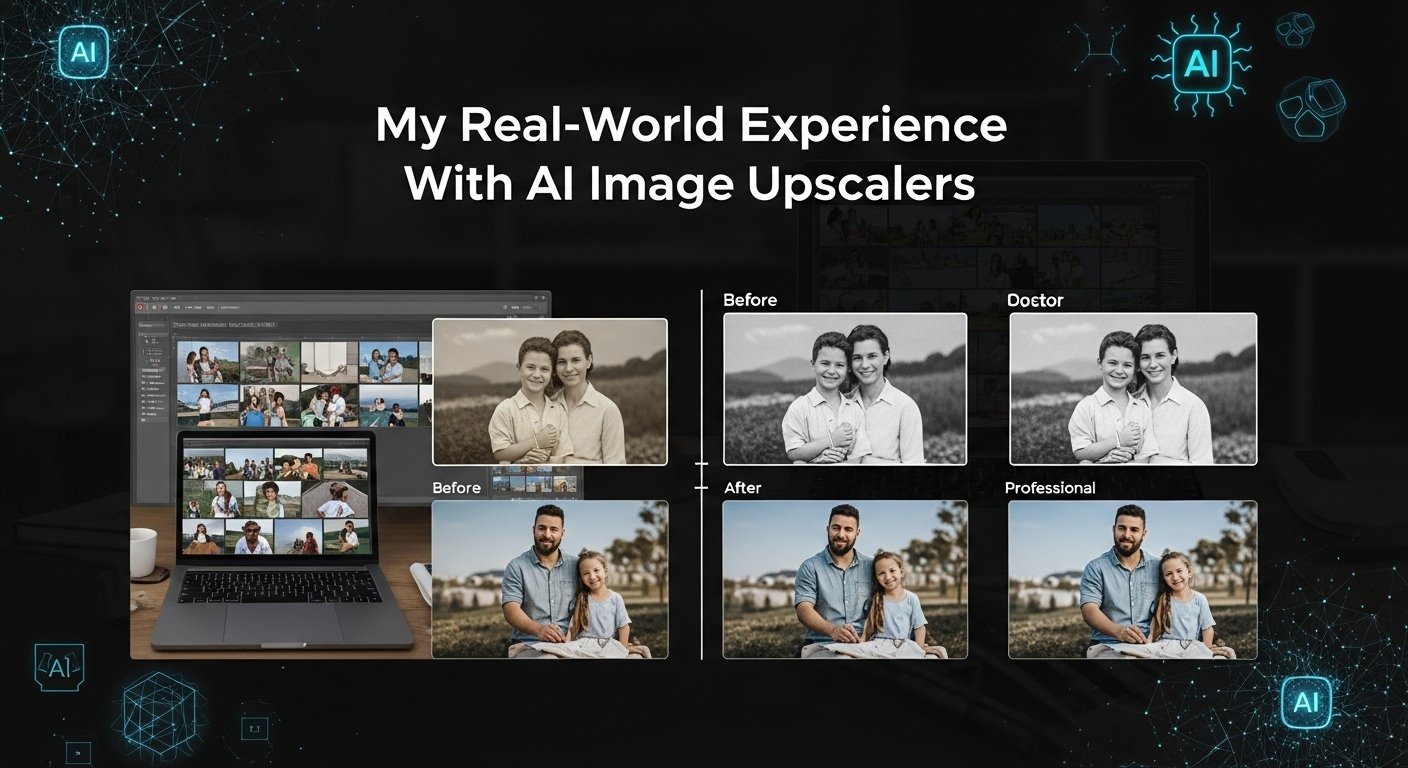
Let me be honest, I used to think the term “AI image upscaler” was just tech jargon slapped onto basic Photoshop filters. Boy, was I wrong. Over the past two years, I’ve tested dozens of AI-powered upscaling tools for a wide range of use cases, from restoring old family photos to preparing high-quality product images for e-commerce clients. The results were anything but consistent.
Some tools felt clunky and unreliable, others delivered surprisingly clean results, and a few genuinely made me pause and wonder whether machines were quietly surpassing human retouchers in certain tasks. Through countless tests, failed experiments, and a fair amount of coffee-fueled late nights, I began to understand what separates real innovation from empty hype.
What follows isn’t a recycled list pulled from an SEO content farm. It’s a practical, real-world guide drawn directly from hands-on experience, essentially my coffee-stained notebook distilled into insights you can actually trust and apply.
Why You Even Need an AI Upscaler (And When You Don’t)
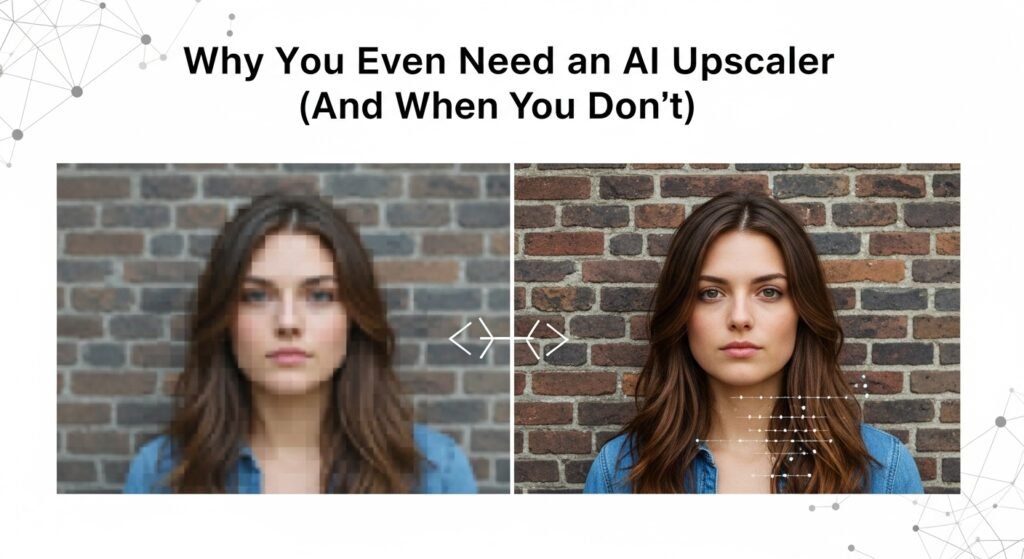
Before we dive into tools, let’s get practical. Not every blurry photo needs AI magic. If you’re working with a 300×300 pixel thumbnail and hoping to blow it up to poster size? Yeah, even the best AI will struggle. But if you’ve got a decent 1080p shot that needs to go 4K for print or digital display? That’s where these tools shine.
AI upscalers don’t just stretch pixels; they intelligently predict what should be there. Hair strands, fabric textures, eyelashes, and brick patterns have been trained on millions of images to fill in gaps convincingly. It’s not witchcraft. It’s deep learning. And it’s damn impressive.
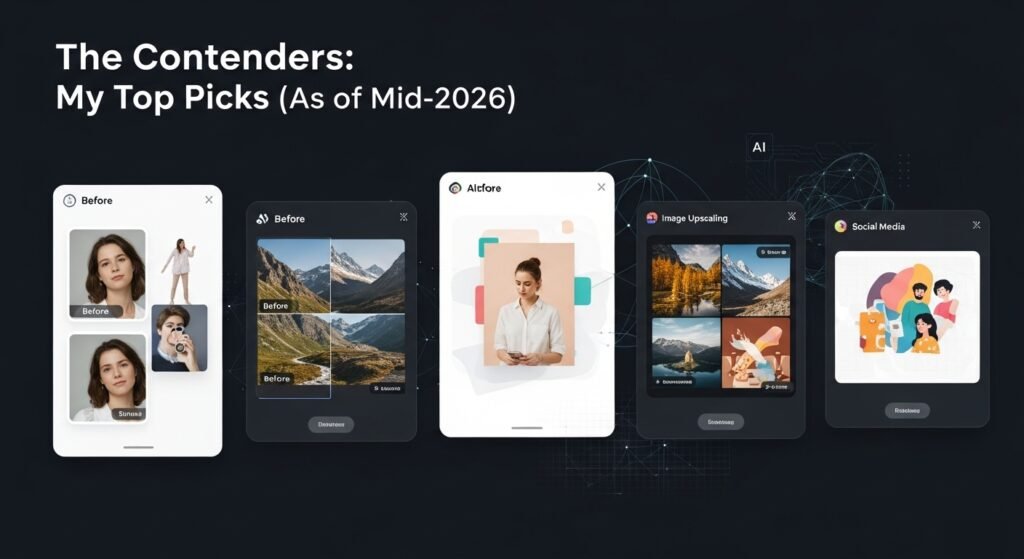
The Contenders: My Top Picks (As of Mid-2026)
1. Topaz Gigapixel AI
Best for: Photographers, designers, and anyone who needs precision.
I’ll start with my personal favorite. Topaz Gigapixel feels like the Swiss Army knife of upscaling. It handles faces beautifully, preserves fine details without over-sharpening, and allows you to manually adjust noise reduction and recovery strength. I once upscaled a 12-year-old vacation photo of my niece; the result looked like it was shot yesterday on a mirrorless camera. Scary good.
What sets it apart? Batch processing, plugin support for Lightroom and Photoshop, and multiple AI models optimized for different content types (human faces, landscapes, artwork). Downside? It’s desktop-only and costs $99 (one-time). Worth every penny if you do this regularly.
2. Upscale
Best for: Budget users, privacy-conscious folks, open-source lovers.
If you’re allergic to subscriptions and want something free and offline, meet Upscayl. Built on Real-ESRGAN models, it runs locally on your machine, no cloud uploads, no data leaks. I’ve used it to upscale low-res screenshots for client presentations, and while it doesn’t handle skin tones as delicately as Topaz, it’s shockingly capable for $0.
Pro tip: Use the “UltraSharp” model for text-heavy images. Just don’t expect miracles with heavily compressed JPEGs; garbage in, slightly less garbage out still applies.
3. Adobe Photoshop (Super Resolution)
Best for: Adobe ecosystem loyalists, occasional upscalers.
You might not realize it, but if you’re already paying for Photoshop, you’ve got a solid AI upscaler built right in. Go to Image > Image Size, check “Resample,” and choose “Preserve Details 2.0” or the newer “Super Resolution.” It’s surprisingly effective for quick jobs. I’ve used it to double the resolution of product mockups without leaving my workflow.
Limitation? No batch mode unless you script it. And compared to dedicated tools, it lacks fine-tuned controls. Still, for existing Creative Cloud users, it’s a no-brainer add-on.
4. Bigjpg
Best for: Anime art, illustrations, line drawings.
Anime fans, rejoice. Bigjpg specializes in upscaling digital art and cartoons without turning lines into mushy blobs. Their AI model is trained specifically on illustration styles, so strokes stay crisp, and colors don’t bleed. I helped a friend upscale her webcomic panels for print results were clean, fast, and preserved the original aesthetic.
Free tier exists (with watermarks and queue delays), paid plans start at $5/month. Web-based only, so keep sensitive content off it.
5. Icons8 Smart Upscaler
Best for: Quick web jobs, social media creators.
This browser-based tool surprised me. Drag, drop, upscale done. No signup required for small files. I’ve tossed in grainy Instagram exports before client calls and walked away with usable assets in under 30 seconds. It’s not as powerful as Topaz, but for speed and simplicity? Hard to beat.
Downsides: Max file size limits on free tier, occasional over-smoothing on complex textures. Great for good enough scenarios.
What Most Reviews Won’t Tell You
- AI isn’t perfect: Sometimes it invents details that weren’t there, stray hairs, phantom buttons, weird skin textures. Always spot-check critical areas.
- Compression kills quality twice: If your source image is a low-bitrate JPEG, even the best AI will struggle. Start with the highest quality source possible.
- Ethics matter: Upscaling someone else’s copyrighted work? Tread carefully. AI doesn’t override IP laws.
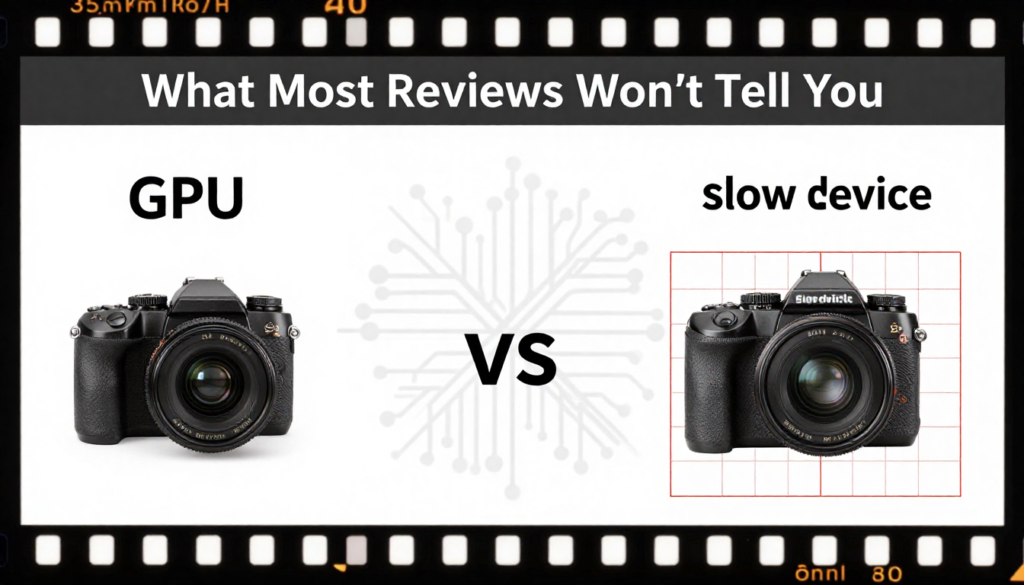
- Hardware matters: Tools like Topaz and Upscale need a decent GPU. My old laptop chugged; my M1 MacBook breezed through.
When to Avoid AI Upscaling Altogether
Not every image deserves the AI treatment. Here’s when I skip it:
- Extremely low-res sources (< 300px wide)
- Images with heavy compression artifacts
- Legal/forensic contexts (AI hallucinations = unreliable evidence)
- Minimalist designs, where added detail ruins the aesthetic
Sometimes, cropping tighter or redesigning from scratch is smarter than forcing pixels to behave.
Final Thoughts: Choose Based on Your Needs, Not Hype
The best tool depends entirely on your use case:
- Professional photographer? Topaz Gigapixel.
- Digital artist? Bigjpg.
- Casual user? Icons8 or Photoshop.
- Privacy-focused techie? Upscayl.
Don’t get seduced by viral demos. Test tools with your images. Most offer free trials or web versions, but abuse them. See how they handle your specific content before committing.
AI image upscaling isn’t about replacing skill, it’s about extending possibility. I’ve restored faded wedding photos, rescued poorly scanned documents, and saved hours of manual retouching. Done right, it’s not cheating. It’s smart workflow.
FAQs
Q: Can AI really make a low-res image HD?
A: Sort of. It enhances and predicts, but won’t create detail from nothing. Start with the best source you have.
Q: Are these tools safe for private photos?
A: Desktop tools (Topaz, Upscayl) are safest. Avoid uploading sensitive images to unknown web services.
Q: Do I need a powerful computer?
A: For desktop apps, yes, especially GPU. Web tools run remotely, so your device specs matter less.
Q: Is there a free alternative to Topaz?
A: Upscayl is the closest free, offline, open-source. Quality is very good, though not quite Topaz-level.
Q: Will AI upscaling replace photographers?
A: No. It enhances existing work; it doesn’t replace composition, lighting, or artistic vision.
Q: How much can I upscale without losing quality?
A: 2x–4x is usually safe. Beyond that, diminishing returns kick in fast.
Q: Which tool is best for old scanned photos?
A: Topaz Gigapixel’s face and texture recovery models excel here.
Q: Can I upscale video with these tools?
A: Not directly. Video requires frame-by-frame processing; look into Topaz Video AI or DaVinci Resolve’s Super Scale.
Q: Do any of these work on mobile?
A: Not really. Mobile apps exist, but they’re limited. Stick to desktop or web for serious work.
Q: Does upscaling affect copyright?
A: No, you still own your image. But upscaling someone else’s work doesn’t grant you new rights.

Related Posts