
This guide cuts through the noise and focuses on what truly matters for beginners: AI tools that are easy to use, safe, and genuinely useful in everyday situations. Rather than overwhelming you with countless options, it highlights carefully chosen platforms that offer reliable free plans and real value from the start. The aim is not to chase hype, but to help new users build confidence, save time, and achieve practical results quickly. By emphasizing simplicity, accessibility, and trust, this guide makes the process of starting with AI feel clear, manageable, and worthwhile.
Instead of overwhelming you with endless options, it highlights carefully selected platforms that offer solid free plans and clear value from day one. The goal isn’t to chase hype or advanced features, but to help newcomers build confidence, save time, and see practical results quickly. By focusing on simplicity, reliability, and accessibility, this guide makes getting started with AI feel manageable, empowering, and worthwhile, rather than confusing or intimidating.
Note: Features and pricing can shift quickly. The tools below are chosen based on how they worked up through late 2025 and how reliably they’ve been serving beginners since then. Always double‑check current free plan limits before committing.
What Makes an AI Tool “Beginner‑Friendly”?
Before jumping into specific tools, it helps to know what to look for:
- No-code, natural language interface
You should be able to type or speak plain English and get value, no scripts, no APIs, no confusing dashboards. - Predictable free tier
Clear limits, no surprise charges, no need to enter a credit card just to experiment. - Good onboarding and templates
Examples, starter prompts, and prebuilt templates matter more than raw power for first-time users. - Responsible defaults
Tools that attempt to filter harmful content, label AI‑generated media, and respect basic privacy expectations. - Cross‑platform access
Ideally works in a browser and has mobile apps or extensions.
With that lens, let’s look at the best AI tools for beginners in 2026.
1. Chat & Writing Assistants (Your Everyday Sidekicks)
These are the tools most people begin with, and honestly, they’re where you can get about 80% of the real value with only 20% of the learning effort. They’re intuitive, practical, and designed to deliver results quickly without requiring technical expertise. Instead of spending weeks learning complex systems, you can start using these tools almost immediately and see meaningful improvements in productivity, creativity, or workflow. For beginners, especially, they offer the fastest path to confidence and impact, making them the smartest place to start before exploring more advanced or specialized AI solutions.
1.1 ChatGPT (Free Version)
Best for: General questions, drafting, brainstorming, and learning new topics.
Even on the free tier, ChatGPT remains one of the most approachable AI tools for beginners. You open it in a browser or app, type what you need, and it responds in conversational language.
What beginners typically use it for:
- Turning rough notes into clear emails or blog posts
- Getting summaries of long articles or PDFs
- Asking to explain this like I’m 12 about complex topics
- Brainstorming ideas for social posts, products, or content
Tips for new users:
- Treat it like a conversation: ask follow‑ups, refine, correct it.
- Always fact‑check anything important, especially numbers, legal, medical, or financial info.
- Don’t paste sensitive data (client secrets, personal IDs, etc.) unless you fully understand the privacy policy.
1.2 Google Gemini (Free)
Best for: Search‑style questions, web-connected answers, and integrating with Google tools.
Gemini (the successor to Bard) is tightly integrated with Google’s ecosystem. For many beginners, that’s a big advantage: you’re often already in Gmail, Docs, or Drive.
Why it’s beginner‑friendly:
- Familiar Google-style interface
- Good at combining search and explanation
- Strong for drafting in Google Docs and summarizing Gmail threads
If you live in Google Workspace all day, Gemini can become an always‑on helper for writing, summarizing, and planning.
1.3 Microsoft Copilot (Free)
Best for: Windows users, Edge browser users, and people in the Microsoft 365 world.
Copilot is built into Windows, Edge, and Office apps for many users.
Even the free tier gives you:
- Chat-style Q&A and drafting
- Image generation via DALL·E (often with generous free usage)
- Assistance within Word, PowerPoint, and Outlook for some accounts
If you’re on a Windows laptop already, this might be the easiest AI to start with; you don’t even have to sign up for something new.
1.4 Perplexity AI (Free)
Best for: Research, quick factual answers, and linked citations.
Perplexity behaves like an AI‑powered search engine rather than a pure chatbot. The key difference: it shows its sources.
Beginners often find this reassuring because you’re not just told an answer; you can click through to see where it came from. That makes it a strong choice for:
- Researching topics for school or work
- Getting up‑to‑date info and news
- Quickly scanning multiple sources without opening 10 tabs
2. Visual & Design Tools (For People Who “Can’t Design”)
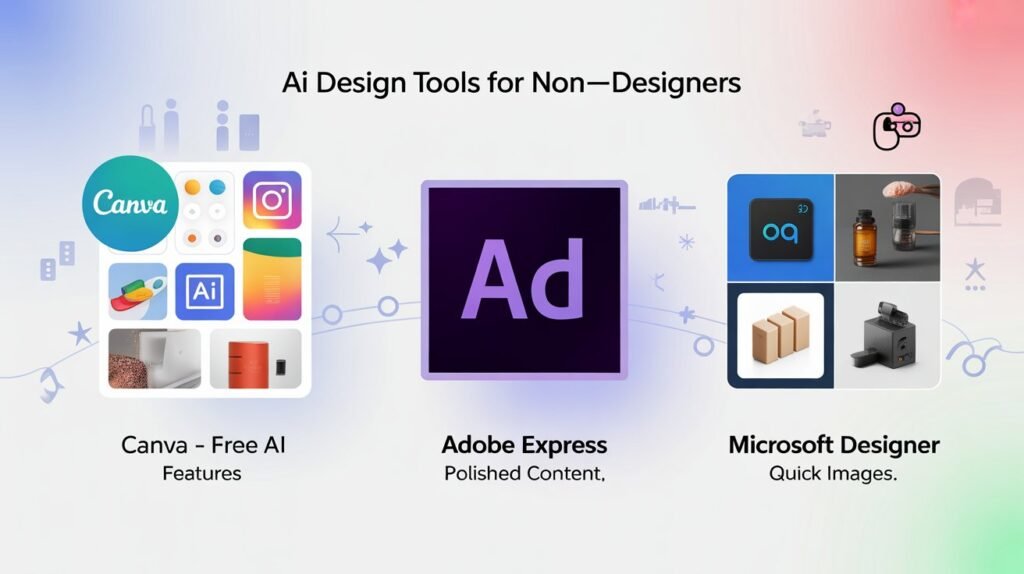
If you’re not a designer but still need eye-catching graphics, polished slides, or engaging social media content, AI design tools can be a true lifesaver. They remove the need for advanced design skills by offering smart templates, drag-and-drop editing, and automated layouts. With just a few clicks, you can create professional-looking visuals that would normally take hours or require hiring a designer. For beginners, small businesses, and creators on a budget, these tools make design faster, simpler, and far more accessible.
2.1 Canva (Free with AI Features)
Best for: Social media posts, presentations, simple branding, and quick visuals.
Canva has been beginner‑friendly for years, and its AI features (like Magic Design and text-to-image) make it even easier now.
On the free plan, you can usually:
- Generate images from text
- Auto-layout designs from a simple prompt
- Use templates for everything from Instagram to resumes
A common beginner workflow: type “Make a simple, clean LinkedIn post about X in blue and white,” then tweak the suggested design.
2.2 Adobe Express (Free Tier)
Best for: Branded content, social posts, light video with polished feel.
Adobe Express targets non‑professionals who still want Adobe‑level polish. The free version typically offers:
- Templates for flyers, social graphics, and logos
- Basic AI image generation
- Simple video editing with text and music
If you ever felt intimidated by full Adobe tools like Photoshop or Premiere, Express is the gentle on-ramp.
2.3 Microsoft Designer / Bing Image Creator (Free)
Best for: Quick, high-quality images from text prompts.
Designer (and its image-generation cousin through Bing) lets you create social posts and marketing visuals based on simple text descriptions.
Use cases:
- Product mockups for a side hustle
- Thumbnails for YouTube or Reels
- Concept art or mood boards
It tends to be very literal, which is actually helpful for beginners: describe what you want in simple terms and refine from there.
3. Video & Audio AI (For Content Without a Studio)
Video used to be the hardest medium for beginners, requiring expensive equipment, editing skills, and a lot of time. AI has completely changed that. Today, anyone can create professional-looking videos using simple text prompts, templates, and automated editing tools. Tasks like cutting clips, adding captions, generating visuals, and syncing music are now handled automatically. This shift has lowered the barrier to entry, allowing beginners, marketers, and creators to produce high-quality video content quickly and confidently, without the steep learning curve that once made video production feel intimidating.
3.1 CapCut (Free with AI Features)
Best for: Short-form video (TikTok, Reels, YouTube Shorts).
CapCut’s AI tools are built for non-editors:
- Auto captions (huge time saver)
- Background removal and replacement
- Style templates for trending formats
If you’re just starting to make video content, CapCut plus your phone is plenty.
3.2 Descript (Free Tier)
Best for: Podcasts, screen recordings, simple video edits.
Descript lets you edit audio and video like a document: delete words in a transcript, and those sections get cut from the media. For beginners, this feels far less intimidating than timeline-based editing.
On the free plan, you can usually:
- Transcribe limited hours of audio
- Remove filler words (“um,” “uh”) automatically
- Do basic multitrack edits
It’s particularly good for educators, coaches, and small businesses recording tutorials or explainers.
4. Productivity & Note-Taking AI
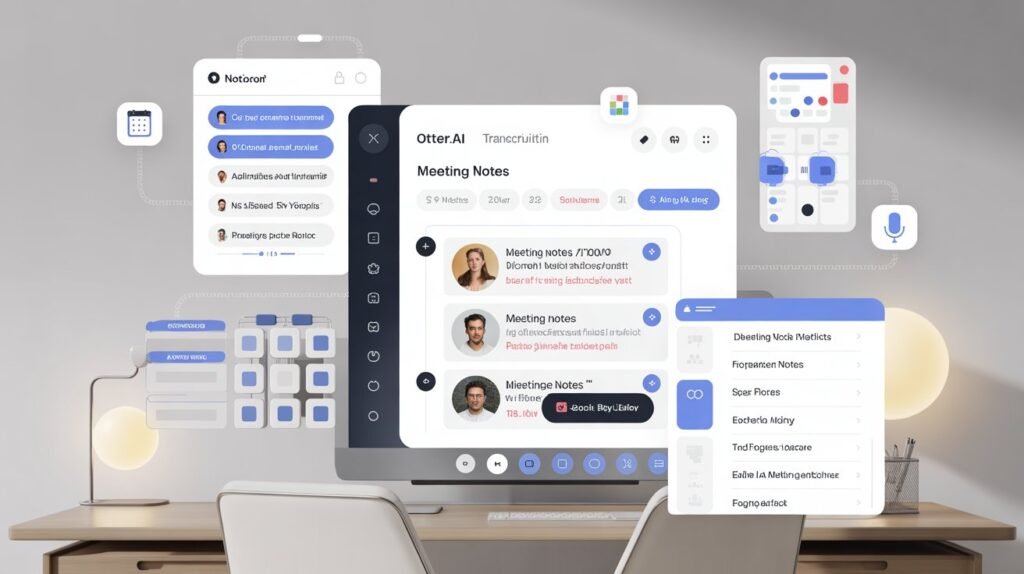
Beginners often see the biggest day-to-day impact from tools that quietly work in the background and take care of the digital grunt work. These tools handle repetitive tasks like organizing files, summarizing emails, transcribing notes, or cleaning up documents, saving hours of manual effort. Because they don’t demand constant attention or complex setup, they fit naturally into everyday workflows. Over time, the small efficiencies add up, reducing mental load and freeing users to focus on more important or creative work instead of routine, time-consuming digital chores.
4.1 Notion with AI
Best for: Knowledge bases, personal wikis, project planning.
Notion itself is a flexible note and database app. Its AI layer helps with:
- Summarizing long notes or meeting docs
- Generating first drafts of project plans or outlines
- Turning bullet points into structured pages
While Notion AI isn’t always free by default, many teams and students already have access through workspace plans. If you’re building a second brain or managing side projects, it’s a strong contender.
4.2 Otter.ai (Free Tier)
Best for: Meeting notes and transcriptions.
Otter records meetings (in-person or online) and creates searchable transcripts. The AI layer:
- Highlights key points
- Auto-identifies speakers (usually)
- Let’s you search across calls by keyword
On the free plan, you get a limited number of monthly transcription minutes, which is enough for light use. For anyone who lives in meetings, this is a very high‑leverage tool.
5. A Simple “Starter Stack” for 2026 Beginners
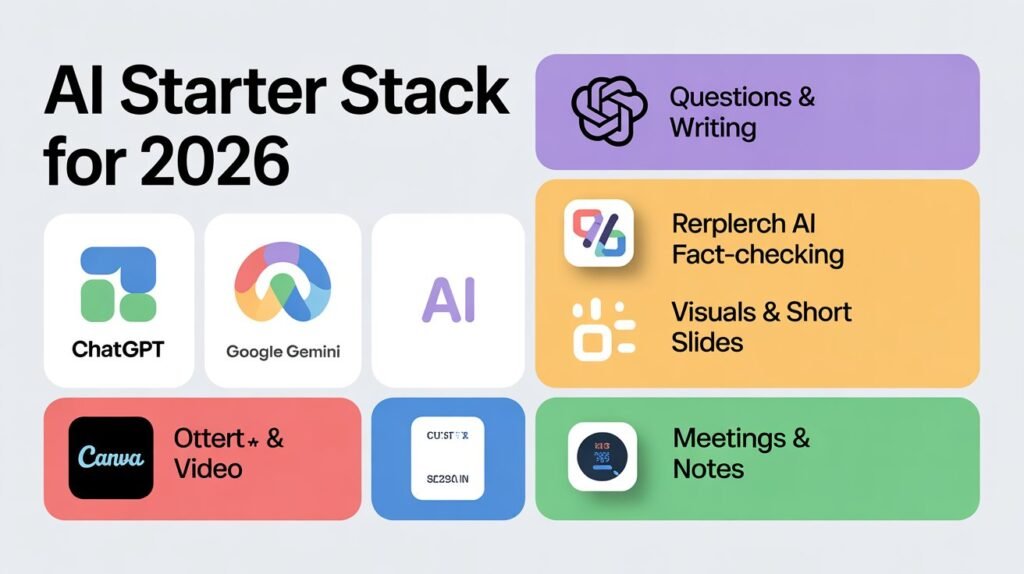
If you’re feeling overwhelmed by the sheer number of options, here’s a practical starting setup that covers most everyday needs without costing anything. This simple toolkit focuses on reliable, beginner-friendly tools that work well together and deliver real value right away. Instead of juggling dozens of platforms, this approach helps you stay focused, reduce confusion, and build confidence with AI step by step. It’s designed to handle common tasks like writing, design, organization, and basic automation giving you a strong foundation before you decide to explore more advanced or paid solutions.
- For questions & writing: ChatGPT Free or Google Gemini (pick the ecosystem you use more).
- For research & fact-checking: Perplexity AI.
- For visuals & slides: Canva Free.
- For short video: CapCut.
- For meetings & notes: Otter.ai Free plus your regular note app.
You can easily run a small business, a content channel, or your studies with just those.
As you grow more comfortable, you might layer on more specialized tools (Notion AI for organization, Descript for more serious video/audio, Adobe Express for branding, etc.).
Using AI Tools Responsibly

A few important realities to keep in mind in 2026:
- AI makes mistakes. Treat outputs as drafts or helpers, not unquestionable truth.
- Privacy matters. Avoid feeding sensitive data into tools unless you’ve read how they handle and store it.
- Regulation is tightening. Systems are under increasing pressure to label AI content and limit harmful use. That’s good for beginners, but don’t assume perfection.
- Skills still matter. AI can amplify your writing, design, or business ideas, but it doesn’t replace judgment, taste, or domain knowledge.
The most successful beginners aren’t the ones using the fanciest tools. They’re the ones who pick a few, learn them well, and build real habits around them.
FAQs: Best AI Tools for Beginners in 2026
1. Are these AI tools really free?
Most offer a free tier with usage limits (messages per day, minutes per month, watermarks, etc.). For light to moderate use, the free versions are usually enough.
2. Do I need to know how to code to use these?
No. Every tool listed here is designed for non‑technical users and works through simple chat boxes, buttons, and templates.
3. Which AI chat tool should I start with?
If you’re already deep in Google, start with Gemini. If you use Windows and Office, try Copilot. Otherwise, ChatGPT Free or Perplexity are excellent general starting points.
4. Can I use these tools for school or work?
Yes, but always follow your organization’s policies. Some schools and companies restrict certain tools or require special settings for privacy and compliance.
5. Is it safe to put my personal data into AI tools?
Be cautious. Avoid uploading sensitive personal, financial, medical, or client data unless you fully understand the tool’s security, storage, and data usage policies.
6. Will these AI tools replace my job?
They’re more likely to change how you work than to instantly replace you. People who learn to use AI as a helper, especially for routine tasks, tend to become more valuable, not less.
7. How do I avoid becoming dependent on AI?
Use AI to draft, summarize, and accelerate, but still practice your core skills: thinking, writing, researching, and deciding. Always review and own the final output.

Related Posts