

By the time 2026 rolls around, “using AI” will feel less like a futuristic experiment and more like using Wi‑Fi; you’ll just expect it to be there, quietly doing half your work in the background. The real challenge won’t be whether to use AI, but which tools are worth your attention, especially if you’re trying to stay on a free plan.
Below is a practical, no-nonsense guide to the top free AI tools you should be considering for 2026, based on what’s already strong and widely adopted today. One important caveat: free tiers, limits, and branding can change. Always double-check current pricing and terms before building your entire workflow on any one tool.
1. AI Assistants & Research: Your Daily “Second Brain.”

Perplexity AI (research & answering complex questions)
If you do a lot of research, Perplexity deserves a permanent slot in your browser.
- What it does best:
Perplexity blends search and chat-style answers. Instead of giving you 10 blue links, it synthesizes sources, cites them, and lets you drill deeper with follow-up questions. - Why it’s useful:
For market research, preliminary literature reviews, competitive analysis, or simply getting up to speed on a topic, it’s far faster and more transparent than a traditional search engine. - Real-world example:
A small business owner can quickly ask, “What are the main privacy requirements for collecting emails in the EU?” and get a sourced overview with links to official regulations and reputable articles.
Perplexity’s core features are available for free, with some advanced models under a paid plan, but the free tier is already powerful for most people.
Microsoft Copilot (everyday multitool)
Copilot is built into Bing, Windows, and Microsoft 365 web apps, which makes it hard to ignore.
- What it does best:
Quick drafting, rewriting, summarizing web pages, generating images (via DALL·E), and basic coding help. - Where it shines:
If you’re already in the Microsoft ecosystem, Outlook, Word, PowerPoint, and Edge Copilot act like a layer of intelligence over the tools you use every day. - Example use:
Summarize a 30-page report into a one-page brief, then ask Copilot to generate a slide outline directly from that summary.
The free browser version is more than enough for everyday writing and ideation.
Google Gemini (search + productivity)
Google has been weaving Gemini into Search, Gmail, and Docs.
- What it does best:
Explaining concepts, rewriting text, summarizing email threads, and helping draft documents. - Why you might care:
If your life runs on Gmail, Sheets, and Docs, Gemini gives you an assistant inside your documents without installing anything new. - Example use:
In Docs, you can ask it to turn messy meeting notes into a structured project plan or agenda.
Free access is typically available through personal Google accounts for core features, with higher-end models gated behind paid options.
2. Free AI Writing & Editing Tools
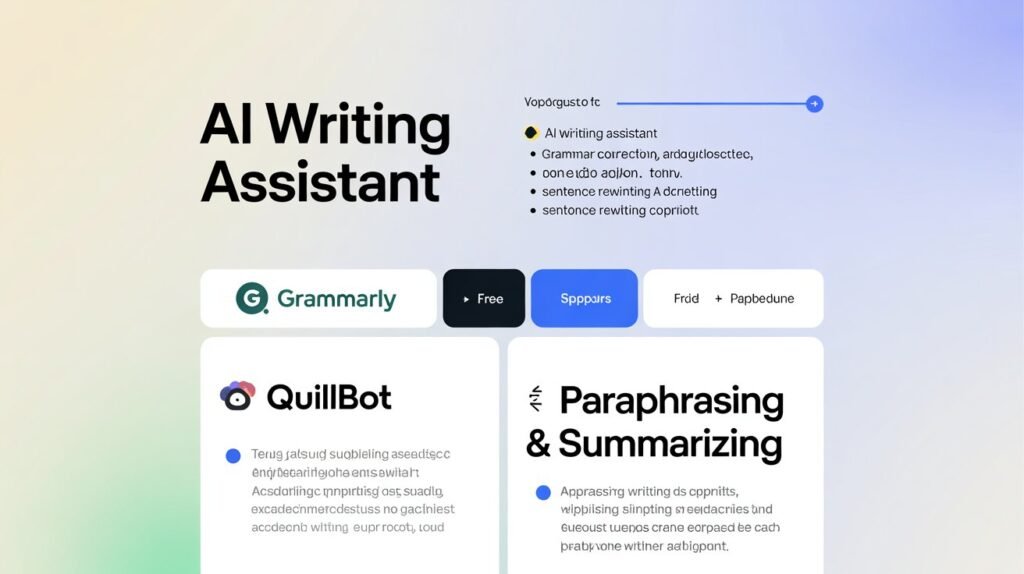
Grammarly (AI writing assistant)
Grammarly has been around for years, but its newer AI capabilities have made it more than just a grammar checker.
- What it does best:
Fixing grammar and tone, rewriting sentences, and offering suggestions to make your writing sharper and clearer. - Where it helps:
Email-heavy roles, job applications, blog posts, social media captions, and general professional communication. - Free vs paid:
The free plan handles basic grammar and tone; AI-powered rewriting and full-structure changes are more limited, but you still get useful nudges.
QuillBot (paraphrasing & summarizing)
QuillBot is popular with students, researchers, and non-native English speakers.
- What it does best:
Paraphrasing, summarizing long texts, and basic grammar checks. - Example use:
Paste in a dense academic paragraph and have it rewritten in simpler language while preserving the main idea. - Free tier:
The free version has word and mode limits, but it’s often enough for occasional rewriting or quick summaries.
3. Free AI Coding Assistants

Even if you’re not a full-time developer, coding assistants can save hours on scripts, spreadsheets, and simple automations.
Codeium (AI code completion & chat)
Codeium is one of the strongest free alternatives to paid coding platforms.
- What it does best:
Autocompleting code, writing boilerplate, generating functions from comments, and answering coding questions inside your IDE. - Supported environments:
Works with VS Code, JetBrains IDEs, and many others. - Use case:
You can comment# fetch top 10 rows from this API and save to CSVand let Codeium draft most of the code for you.
The free tier for individuals is generous and suitable for students, indie devs, and hobby projects.
Browser-based coding chat (Copilot, Gemini, others)
Even the general-purpose AI assistants mentioned earlier can help with coding:
- Debugging: Paste an error trace and ask for likely causes and fixes.
- Learning: Ask for explanations of concepts like “what is memoization?” or explain Docker in simple terms.
- Scripting: Generate quick Python or JavaScript snippets to automate repetitive tasks.
You won’t get the deep integration of a full coding copilot on a free plan, but for light scripting work, it’s often enough.
4. Free AI Tools for Design & Images
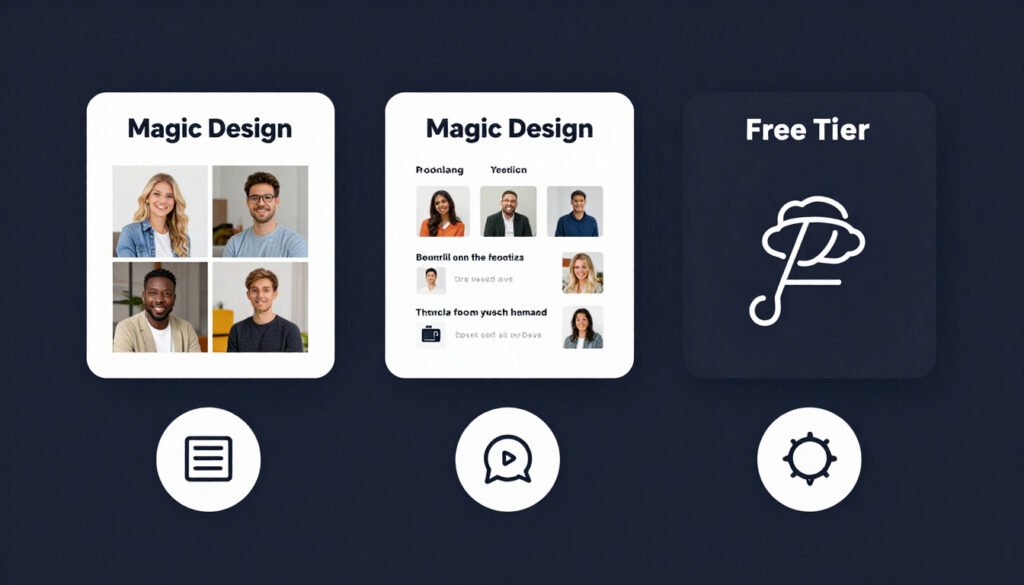
Canva (AI design and image generation)
Canva has quietly become a default tool for non-designers, and its AI features make it even more approachable.
- What it does best:
Creating social posts, presentations, posters, resumes, and basic brand assets with AI-powered templates and design suggestions. - AI features:
- “Magic Design” to generate layouts from text or existing content
- AI image generation for concepts and backgrounds
- Text rewriting and summarizing for content blocks
- Free tier:
Millions of templates and many AI features are available free, with some content and brand tools reserved for paid users.
Adobe Express (powered by Firefly)
Adobe Express is Adobe’s lighter, web-based design tool, backed by its Firefly AI models.
- What it does best:
Quick graphics, social media assets, simple video, and AI-generated images with a strong focus on commercial safety (Firefly is trained on licensed data). - Why it matters:
If you care about copyright and brand safety, Firefly is often considered a more conservative, enterprise-friendly choice. - Free tier:
Includes limited AI credits each month, which is typically enough for personal and small business use.
Bing Image Creator / Copilot Images
Integrated into Microsoft Copilot, Bing Image Creator lets you generate images from text prompts.
- What it does best:
Concept art, thumbnails, illustrative visuals, and mockups. - Use case:
Need a quick, modern flat illustration of a remote team working on laptops for a slide deck? It can do that in a few seconds. - Free use:
There are usually daily or monthly limits, but for occasional use, it’s effectively free.
5. AI for Audio, Video & Meetings
Otter.ai (meeting transcription & notes)
Otter is a staple for people who live in meetings.
- What it does best:
Live transcription of meetings, generating summaries, highlighting key points, and tagging speakers. - Example use:
Record a Zoom call and later skim the summary instead of rewatching the entire meeting. - Free tier:
Limited monthly transcription minutes, but enough if you use it selectively for important calls.
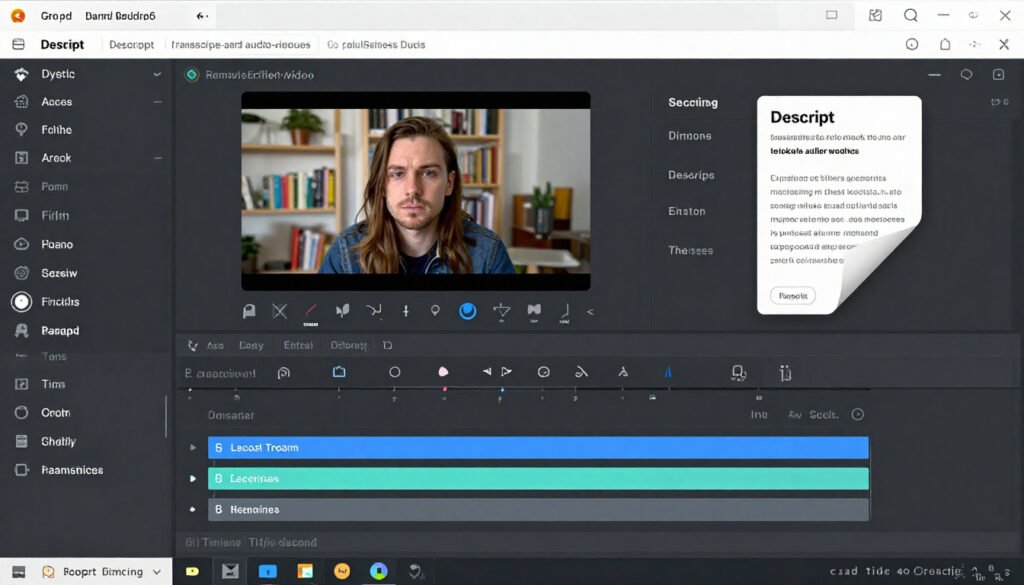
Descript (editing audio & video like text)
Descript combines transcription with editing tools.
- What it does best:
Turning audio and video into text, you can cut, move, and edit, and have these changes reflect in the media timeline. - Use case:
For a podcast episode, delete every “um” or awkward pause in the transcript, and the audio will update automatically. - Free plan:
Offers limited export minutes and watermarking, but is still very useful for basic editing and experimentation.
6. Automation & Light No-Code AI
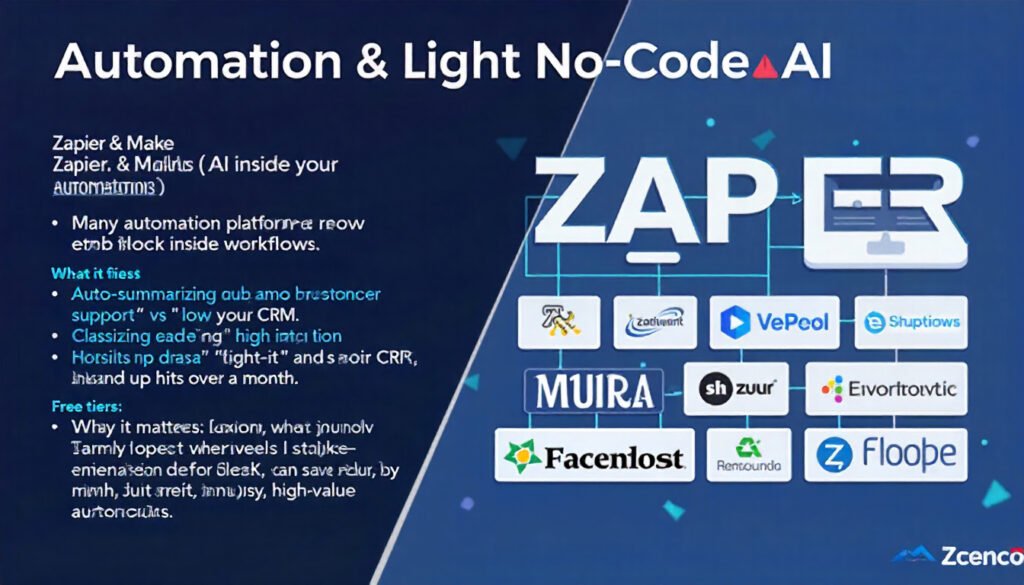
Zapier & Make (AI inside your automations)
Many automation platforms now embed AI blocks inside workflows.
- What they do best:
- Auto-summarizing customer support tickets
- Classifying leads (e.g., “high intent” vs. “low intent”)
- Cleaning up data before it hits your CRM
- Why it matters:
Even a simple automation, whenever I get a form submission, summarizes it and sends it to Slack, can save hours over a month. - Free tiers:
Limited number of tasks/scenarios per month, but great for small, high-value automations.
How to Choose Your Free AI Stack for 2026
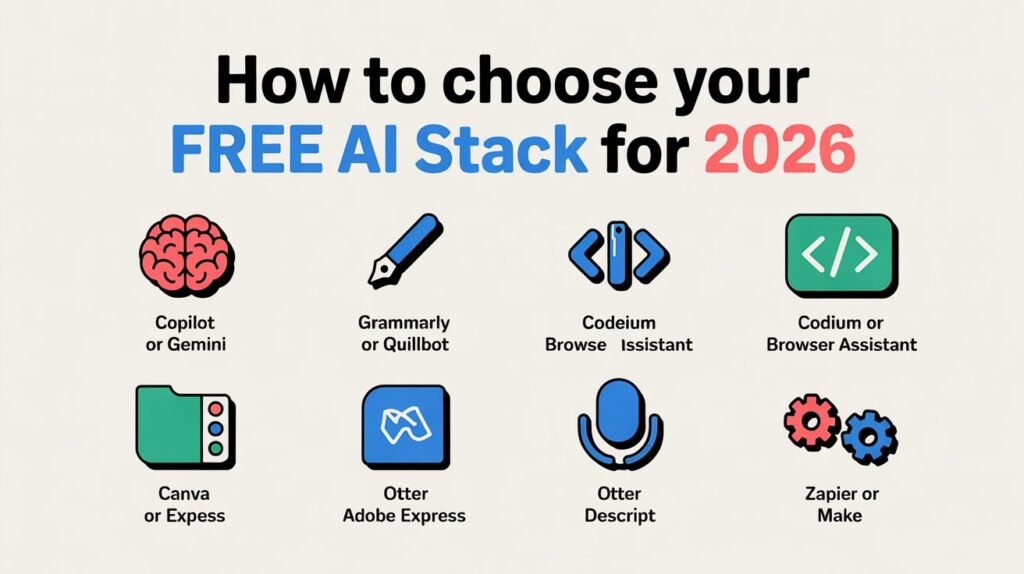
Instead of trying every shiny new product, build a simple, focused stack:
- One main assistant: Copilot, Gemini, or a similar tool as your general problem-solver.
- One writing editor: Grammarly or QuillBot for day-to-day text polishing.
- One coding helper: Codeium or a browser-based assistant if you write any code or scripts.
- One design tool: Canva or Adobe Express for everything visual.
- One meeting tool: Otter or Descript if you’re in a lot of calls.
Then add automation tools (Zapier/Make) only when you find yourself repeating the same digital task more than a few times a week.
Final Thoughts
Free AI tools in 2026 will be powerful enough to meaningfully change how you work, especially if you’re intentional about what you adopt. The risk isn’t that you’ll “miss out on AI”; it’s that you’ll drown in options and never go deep enough with any of them.
Pick a handful, learn them properly, and integrate them into your daily routines. The compounding time savings will be far more valuable than chasing every new launch.
FAQs: Free AI Tools You Should Use in 2026
1. Are free AI tools actually safe to use for business?
They can be, but you need to read their privacy and data-use policies. Avoid pasting confidential information into any tool that doesn’t clearly state how your data is stored and whether it’s used for training.
2. Will these tools still be free in 2026?
Free tiers and limits may change. Treat free plans as starter layers, and be prepared to switch tools or upgrade if a tool becomes critical to your workflow.
3. Can I run AI tools locally instead of in the cloud?
Yes. There are local, open-source options (especially for transcription and smaller language models), but they require more technical setup and a reasonably powerful machine.
4. What’s the best free AI tool for students?
A combination works best: Perplexity for research, Grammarly or QuillBot for writing support, and Canva for presentations. Always follow your school’s academic integrity rules.
5. Do I need to know how to code to benefit from AI tools?
No. Most tools in this list are no-code and designed for non-technical users. Coding assistants help if you already code, but they’re not a requirement to benefit from AI.
6. How do I avoid becoming over-dependent on AI?
Use AI to speed up routine work drafting, summarizing, and formatting, but keep ownership of critical thinking, decision-making, and final reviews. Treat AI as a collaborator, not a replacement for your judgment.

Related Posts